
Resetting your password in Excede is very easy and only requires 4 steps.
1. Log in to Excede
2. Click HELP on the Excede toolbar.
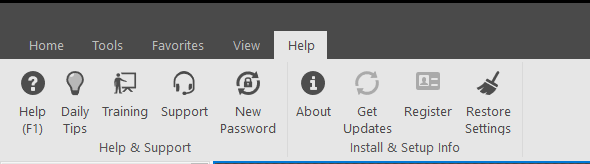
3. Click the 'New Password' button.
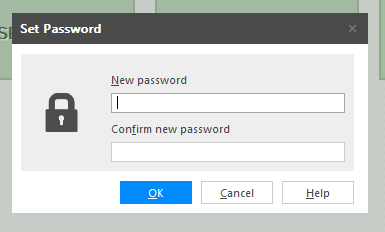
4. Enter your new Password in the 'New Password' box, type it again in the 'Confirm new password' box. Click Ok.
- Your password can only be 8 characters long.
- You may NOT use any previously used password.
If the New Password button is greyed out:
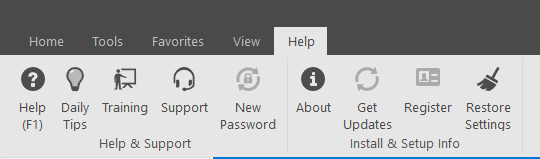
Restart your computer then log into Excede, the New Password button should no longer be greyed out.
If it is, please contact the I.T. Department.
Comments
0 comments
Please sign in to leave a comment.