
Did you get a Windows 10 upgrade and your default PDF viewer is set to Microsoft Edge? Follow these steps and you will be opening PDF's in which ever application you prefer in just a few minutes.
- Open the Default Apps window:
- Press the Windows key on your keyboard and begin to type 'Default Apps'. as you type you may see the following:
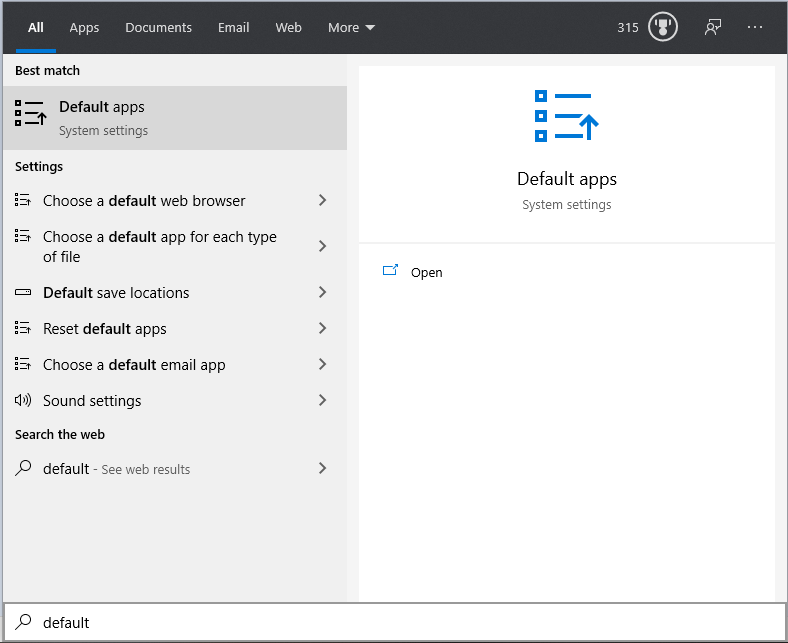
- Click 'Default Apps'
- In the Default Apps screen click 'Choose default apps by type. If you do not see it you may need to SCROLL down the page.
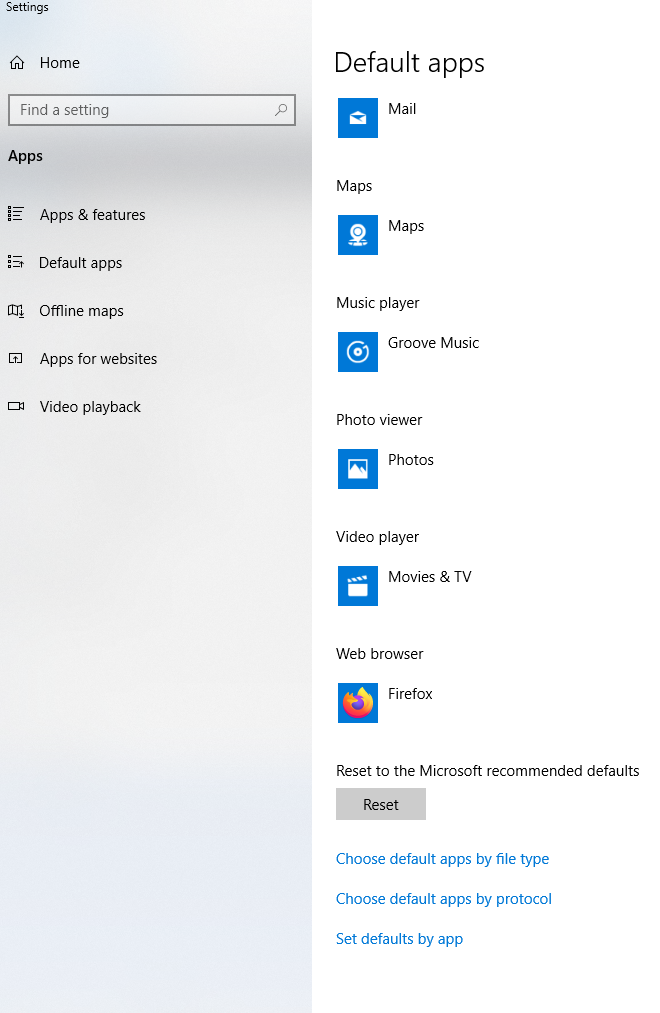
- Scroll down the list (its long and may take a bit) and look for .PDF. You may see it already has a default (Usually Edge). Click the existing default and click your application of choice; usually this will be Adobe Acrobat Reader DC or PDF-Xchange Viewer.
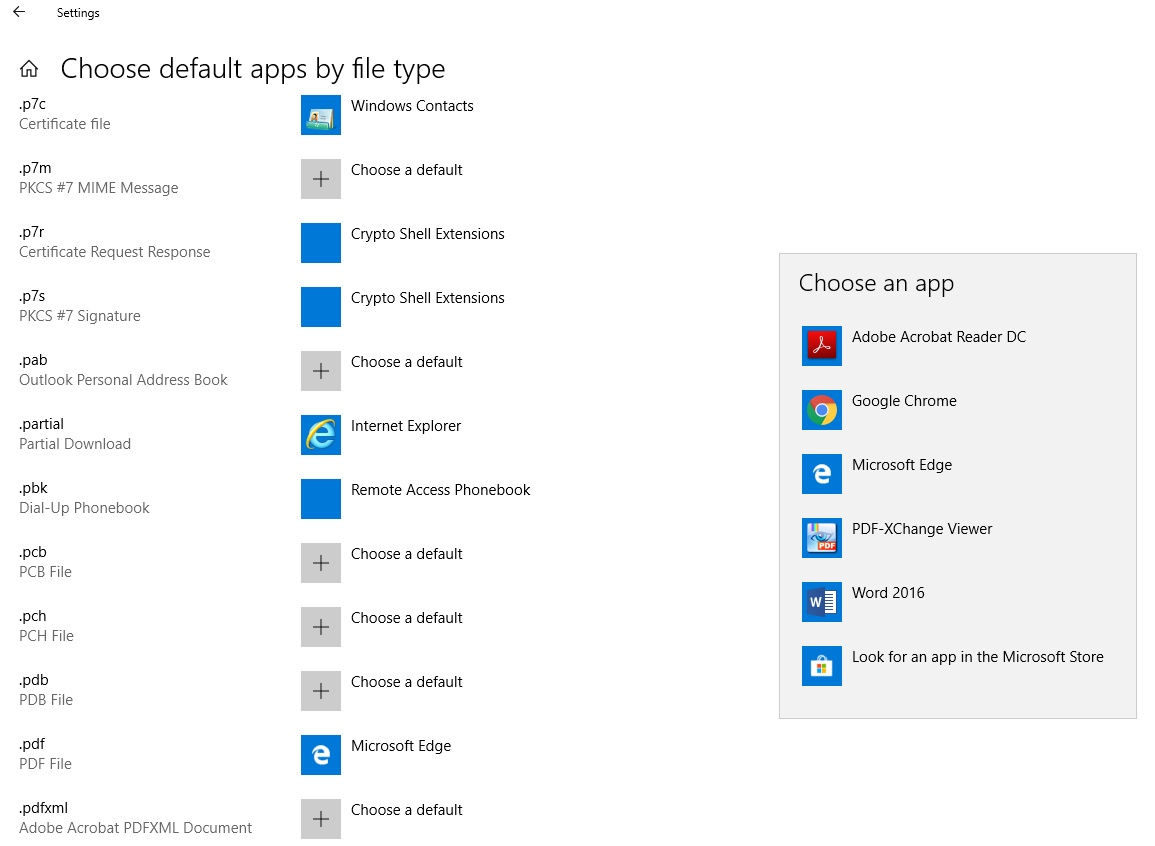
- Close the window. Open a PDF file to test if it opens in your application of choice. If not repeat the steps above.
- You are ready to work!
- Press the Windows key on your keyboard and begin to type 'Default Apps'. as you type you may see the following:
Congratulations! you've just changed your default PDF application!
Keep checking back for more how-tos.
Comments
0 comments
Please sign in to leave a comment.