
When a request for support comes into our helpdesk, one of the most important items is the most often left out of support tickets; the computer name.
The I.T. Department uses this computer name to find your computer among a list of hundreds of devices so we can sign in and remediate your issue quickly. The sooner we have access to this information the faster we can get to work.
Below are some ways to find the computer name for your device.
Finding the remote agent icon
One of the easiest ways to find the computer name is to find the remote agent icon by the clock and to hover the mouse over it.
1. Locate the Truck icon in the lower right hand corner of your display. (if you have moved your taskbar to a different location, find the clock on your screen.)
2. If you do not see the icon, press the ^ to show you more icons.
3. Right click on the truck icon, the menu below will appear.
4. Left click on Display Device Name. A box similar to the below will appear.
This is your computer name; it will vary from computer to computer.
Using the Windows Command Line
Using the windows command line is another way to find your computer name.
1. Press the Windows Key on the bottom right of your keyboard OR press the Windows button in the lower left corner of your screen.
2. type the letters CMD and you will see the following:

3. Press ENTER or use the mouse to click on Command Prompt.
4. Type hostname and press ENTER.
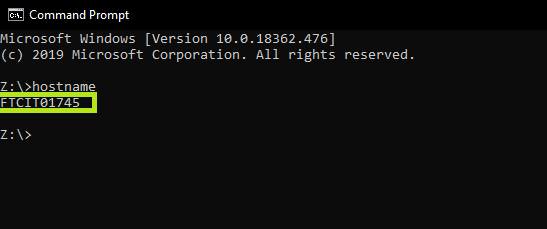
5. The computer name will be in the area highlighted in the above picture.
Using the ABOUT screen
The last place you can find the computer name is on the ABOUT screen.
1. Press the Windows Key on the bottom right of your keyboard OR press the Windows button in the lower left corner of your screen.
2. Type Computer Name

3. Click View your PC Name or press ENTER
4. Your computer name will be listed next to DEVICE NAME.
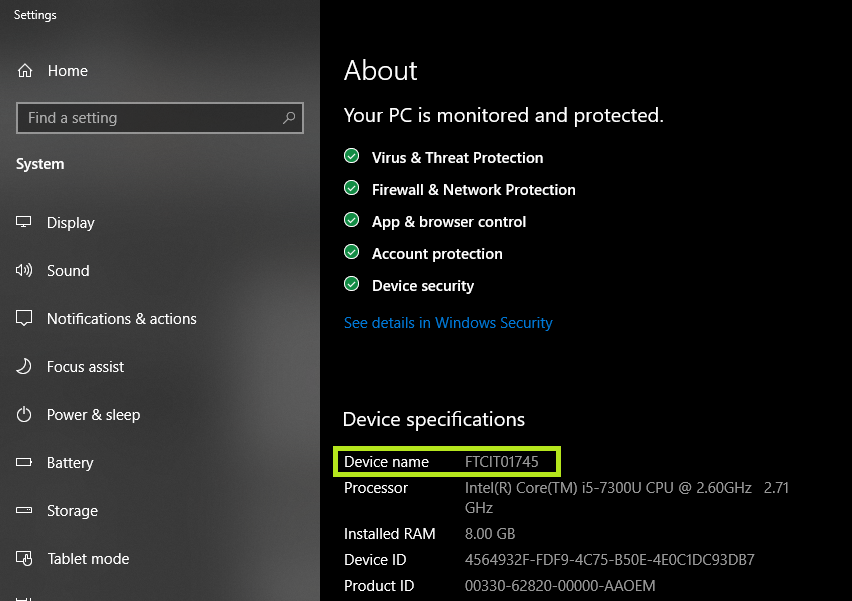
Now you can provide the I.T. helpdesk with your computer name and get them logged into your system so they can help you quickly.
Comments
0 comments
Please sign in to leave a comment.